> ## Documentation Index
> Fetch the complete documentation index at: https://docs.weflayr.com/llms.txt
> Use this file to discover all available pages before exploring further.
# Sync revenue
> Bring your revenue per customer in, to see your margin.
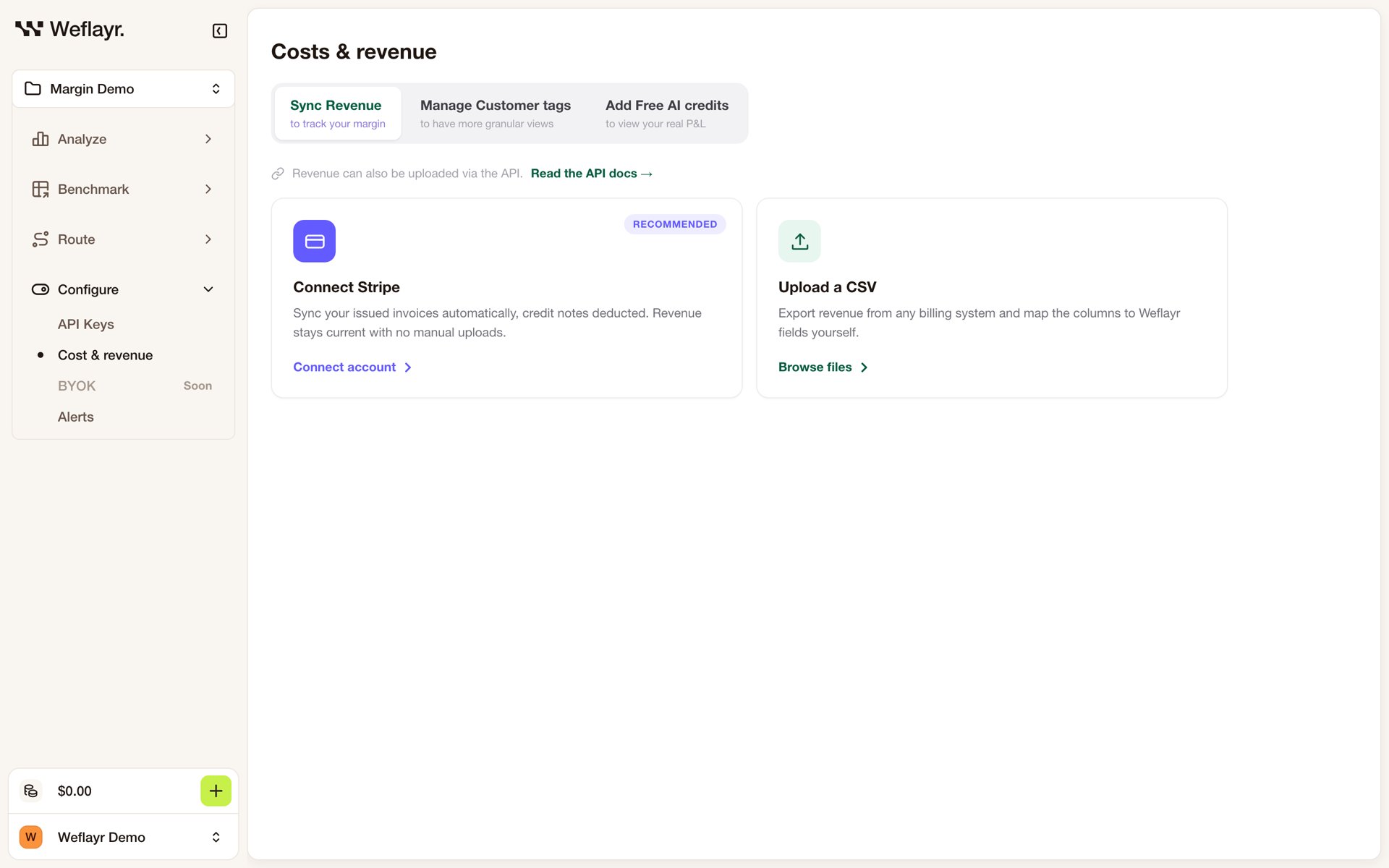
From **Cost & revenue** in the sidebar, pick a source:
* **Connect Stripe** (recommended): your issued invoices sync on their own, credit notes deducted.
* **Upload a CSV**: export revenue from any billing system, map its customer and revenue columns, and pick the month it belongs to.
* **API**: push revenue from your code with [Set revenue](/api/management/set-revenue).
 Revenue and AI cost meet on the customer name: the `customer_name` your calls carry. With Stripe, Weflayr matches it to the Stripe customer's name, or to a `weflayr_customer_name` metadata field you set on each Stripe customer.
Sources add up: use one per customer and month to avoid counting revenue twice.
On an [internal project](/product/organizations-and-projects#internal-projects), this tab uploads your key metrics per user instead.
This documentation is built and hosted on [Mintlify](https://mintlify.com), a developer documentation platform.
Revenue and AI cost meet on the customer name: the `customer_name` your calls carry. With Stripe, Weflayr matches it to the Stripe customer's name, or to a `weflayr_customer_name` metadata field you set on each Stripe customer.
Sources add up: use one per customer and month to avoid counting revenue twice.
On an [internal project](/product/organizations-and-projects#internal-projects), this tab uploads your key metrics per user instead.
This documentation is built and hosted on [Mintlify](https://mintlify.com), a developer documentation platform.